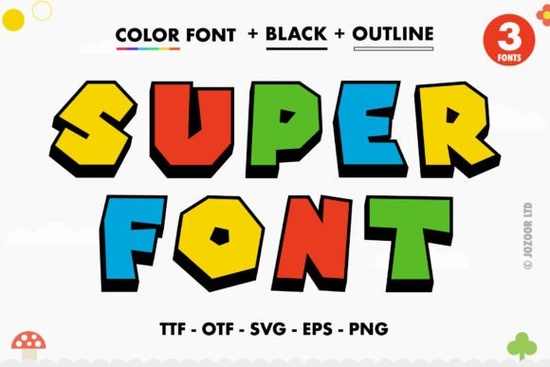
If you need a typeface that grabs attention instantly, Super Font delivers exactly that with its thick, playful lettering and built-in color effects. This OpenType-SVG font brings a fun, energetic vibe to projects without requiring you to manually layer shapes or adjust gradients. It's designed for creators who want bold results quickly, whether you're making stickers, social media graphics, or print-on-demand merchandise. You can explore the full character set and see how Super Font looks in real projects before downloading.
What makes this a color font and how does it work?
Unlike traditional fonts where you apply a solid color fill, Super Font uses OpenType-SVG technology. This means the colors, gradients, and textures are embedded directly into the font file. When you type, the letters appear with their full design intact. You don't need to add effects manually, which saves time and keeps your workflow simple.
The font is also PUA encoded, which is a helpful feature for crafters and designers who use extra characters. PUA encoding ensures you can access all glyphs and swashes without hunting through character maps or using third-party tools. Every special character is ready to use as soon as you install the font, so you won't waste time searching for hidden elements. This is especially useful if you switch between different design programs frequently, as the glyphs remain accessible across your workflow.
Which design programs are compatible with Super Font?
Compatibility is the most important detail to check before starting a project. Super Font works smoothly in applications that support OpenType-SVG color fonts. You can use it confidently in:
- Adobe Photoshop
- Adobe Illustrator
- Silhouette Studio
- Inkscape
Important note for Cricut users: The OTF and TTF files included with this product are not compatible with Cricut Design Space. Cricut does not support OpenType-SVG color fonts, so the colors and thick lettering effects will not display correctly. If you rely on Cricut for cutting or print-then-cut projects, you'll need to create your designs in a compatible program like Photoshop or Illustrator first, export them as PNG or SVG images, and then upload those files to Cricut.
Silhouette Studio users can take advantage of the color font support in newer versions of the software. Ensure you have the updated application to see the SVG colors correctly. This allows you to create vibrant cut files or print-and-cut stickers without manually adding offset layers or color fills.
What projects suit this thick, fun lettering style?
The bold, chunky structure of Super Font makes it ideal for designs that need to stand out at a glance. It's a practical choice for:
- Print-on-demand apparel: Thick letters read well on t-shirts and hoodies, even from a distance. For POD sellers, the bold structure helps prevent issues with thin lines that might crack or fade on fabric, making it a reliable choice for merchandise that customers will use repeatedly.
- Stickers and labels: The built-in color adds depth without increasing file complexity, which speeds up production for sticker shops.
- Social media quotes: Grab attention in feeds where users scroll quickly. The playful shape stops the eye and encourages engagement.
- Kids' products: The friendly letterforms work well for party invitations, classroom decor, and children's book covers.
- Brand logos: Use it for businesses that want an approachable, cheerful identity, such as bakeries, toy stores, or creative studios.
When planning a product collection, pairing this style with other bright and expressive fonts helps you offer variety across your catalog while maintaining a cohesive, lively aesthetic.
How do I install the font and access all the glyphs?
Installing Super Font follows the standard process for your operating system. On Windows, right-click the font file and select "Install." On Mac, double-click the file and choose "Install Font" in the preview window. Once installed, restart your design software to ensure the font appears in your menu.
Because the font is PUA encoded, you don't need special software to unlock extra characters. All swashes and alternate glyphs are accessible directly within supported programs. If you're new to working with color fonts or need help troubleshooting installation steps, checking a detailed font guide can clarify how your specific software handles SVG data and character panels.
What tips help avoid common mistakes?
To get the most out of this typeface, keep a few practical tips in mind:
- Check font size: Color fonts can look pixelated if scaled too small. Test your design at the final print size to ensure the details remain crisp and the colors render smoothly.
- Use high contrast backgrounds: Since the font has built-in colors, place it on backgrounds that make the letters pop. White or dark solid backgrounds usually work best to maintain readability.
- Export correctly: When saving for web or print, use formats that preserve color data. PNG is a safe choice for digital use, while high-resolution PDF or TIFF works well for professional printing.
- Avoid recoloring: Trying to change the font color in your software may override the SVG effect or cause display errors. Use the font as designed for the intended look.
Before you start designing, run through this quick checklist to ensure a smooth workflow:
- Verify your software supports OpenType-SVG color fonts.
- Install the font and restart your application.
- Type a test line to confirm colors and swashes appear correctly.
- If using Cricut, design in a compatible program and export as an image first.
- Review your final export at 100% zoom to check for clarity and color accuracy.
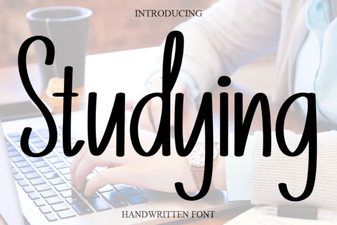 Best Fonts for Studying and Effective Learning Materials
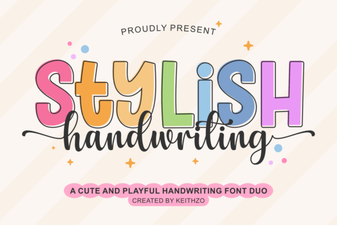 Find the Perfect Stylish Font for Your Creative Projects
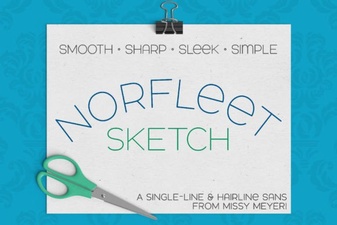 Single Line Font for Modern Design Projects
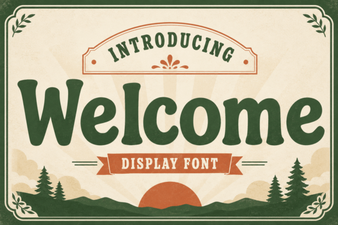 Welcome Fonts for Creative Web Design Projects
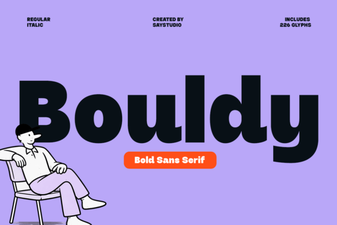 Bouldy Font: Creative Display for Modern Designs
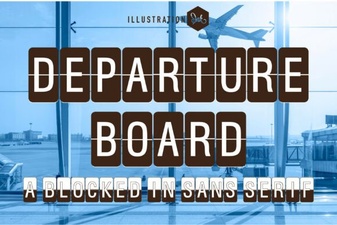 Create a Dynamic Departure Board with a Digital Font