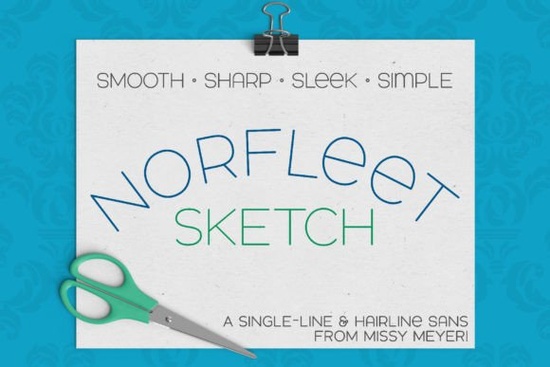
If you work with sketch pens, foil quills, or CNC engraving tools, you already know that standard outline fonts rarely draw cleanly. That is exactly why Norfleet Sketch (single Line) Font was designed from the ground up as a true single-stroke typeface. Instead of tracing the outer edges of each letter, your machine follows one continuous path, which saves time, reduces material waste, and keeps your lines sharp. Whether you run a small craft business, test print-on-demand products, or just make personalized gifts at home, this clean sans-serif gives you a modern, wide stance that reads well at almost any size.
What makes a single-line font different from regular typefaces?
Regular fonts are built with closed outlines. When you send them to a drawing tool, the machine traces the outside and inside of every character, which often looks bulky or causes the pen to double back over the same spot. A single-line or hairline font removes that extra step. Norfleet Sketch uses minimal nodes and smooth curves, so your stylus, engraving bit, or infusible ink pen moves in one direct path. The result is a crisp, professional finish that works especially well on metal blanks, acrylic tags, leather patches, and delicate paper crafts. Keep in mind that these files are not meant for standard word processing or regular printing. They are built specifically for tools that draw rather than cut.
Which version should you choose for your software?
The download includes two separate files, and picking the right one depends entirely on the program you use. Norfleet Sketch One is a true single-line font. It works beautifully in specialized CNC environments like Rhinoceros, but most mainstream design apps will automatically connect the start and end points of each stroke. If you are comfortable in Adobe Illustrator, Inkscape, or Affinity Designer, you can easily delete that connecting line and keep the pure single path. If you prefer a plug-and-play experience, Norfleet Sketch Two is the better fit. It is a hairline outline where the strokes sit so close together that they appear as a single line. You can type and send it straight to Silhouette Studio, Cricut Design Space, CorelDRAW, or similar platforms without any manual adjustments. A quick PDF guide is also included in the folder to help you match the file to your software.
How to get clean results with sketch pens and engraving tools?
Single-line typefaces behave differently than standard fonts, so a few small setup changes will save you from messy test runs. First, always set your machine to draw or score instead of cut. If you are using a Cricut or Silhouette, attach your text to the drawing layer and double-check that the line weight is set to the thinnest possible setting. For laser engravers and Glowforge users, switch your file to a stroke path and verify that the power and speed settings match your material. Because Brother Canvas Workspace has known compatibility limits with single-line data, I recommend testing a short word first or switching to a different design app for this particular typeface. When in doubt, run a quick scrap test on the same material you plan to use for the final piece.
Pairing options and design workflows
Even though this font stands nicely on its own, it pairs smoothly with almost any complementary typeface. The double-uppercase structure gives you a consistent rhythm, while a few lowercase alternatives like the round-topped A and the traditional e add subtle variety when you need it. If you want a slightly heavier contrast for headlines, you might test it alongside a sturdy sans like Bouldy or a clean geometric option such as Cultivo. For softer branding materials, mixing it with Brisca keeps the layout balanced without competing for attention. You can also explore Kohilo when you need a relaxed, modern feel for packaging or product labels. If you need to grab the latest file updates or check commercial licensing terms, you can always revisit the Norfleet Sketch single line font listing before starting a new batch. For additional marketplace details, you can view Norfleet Sketch directly.
What should you check before sending your file to the machine?
A quick pre-flight review prevents wasted materials and keeps your production schedule on track. Use this simple checklist before you hit send:
- Verify that you selected the correct version (One for vector editing, Two for direct crafting apps).
- Switch your machine setting to draw, score, or engrave instead of cut.
- Remove any automatic stroke connections if you are using the true single-line file in Illustrator or Inkscape.
- Test a three-word sample on scrap material that matches your final project.
- Check spacing and kerning, especially if you are working with the double-uppercase layout.
Once those steps are clear, you can run your full design with confidence. Single-line fonts take a little practice at first, but they quickly become a reliable part of your workflow when you need fast, clean, and professional results.
Download Now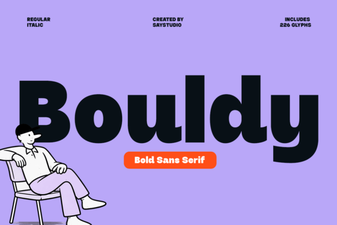 Bouldy Font: Creative Display for Modern Designs
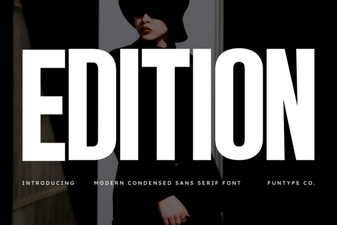 Craft & Design with Edition Font Templates
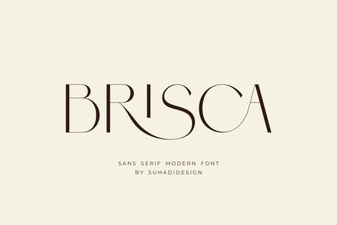 Brisca Font: Stylish Designs & Creative Projects
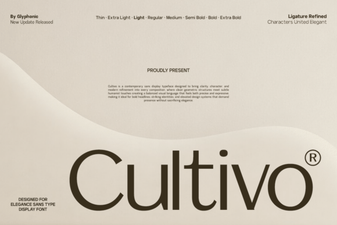 Cultivo Font: Enhance Designs with Organic Typography
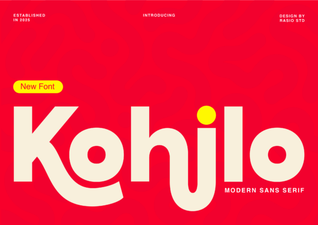 Kohilo Font: Creative Design Projects & Inspiration
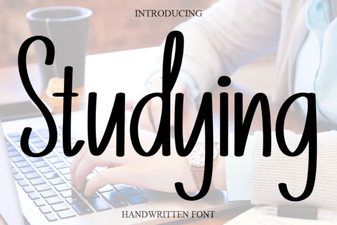 Best Fonts for Studying and Effective Learning Materials